
Posters remain one of the simplest ways to promote events, announce milestones, or add personality to a space. Whether for a school fundraiser, community gathering, birthday celebration, or small business launch, a well-structured poster communicates quickly and clearly.
For people without design training, the main obstacle is not creativity. It is understanding layout hierarchy, image quality, and print preparation. Print-on-demand workflows reduce the technical barrier, but clarity and structure still determine the final result.
Browser-based tools make it possible to start with clean templates, consistent spacing, and preset sizes rather than building from scratch. Adobe Express is one accessible way to begin, especially when using it to create printout posters with Adobe Express through structured templates designed for common poster dimensions.
The steps below outline a clear process from idea to print order, focusing on readability, file setup, and practical checkpoints.
Step-by-Step Guide to Using Print-on-Demand Posters
Step 1: Clarify Purpose and Select the Right Size
Goal
Define what the poster must achieve and choose the correct format before designing.
How to do it
- Write one sentence describing the poster’s objective.
- Identify the audience and where the poster will be displayed.
- List essential information only (date, location, contact).
- Choose a standard size (e.g., 11×17, 18×24, A3).
- Start with a size-matched template in Adobe Express to avoid resizing later.
What to watch for
- Avoid including every possible detail.
- Confirm the selected size matches your intended print service.
- Consider viewing distance when choosing font scale.
Tool notes
If you need to track multiple poster versions or event deadlines, a project management tool like Trello can help organize drafts, approvals, and print timelines without affecting the design process.
Step 2: Establish Visual Hierarchy
Goal
Make the main message immediately recognizable.
How to do it
- Make the event name or headline the largest text element.
- Use consistent font pairings (no more than two or three).
- Separate headline, subheading, and body text clearly.
- Align text consistently across the layout.
- Adjust spacing to prevent crowding.
What to watch for
- Decorative fonts may reduce readability.
- Overlapping colors can lower contrast.
- Too many font sizes create visual confusion.
Tool notes
If you want to test readability across different screens or compare layout variations, a simple mockup tool like Placeit can help visualize how the poster might appear in real-world settings.
Step 3: Add Images or Graphics Thoughtfully
Goal
Support the message visually without overwhelming the layout.
How to do it
- Choose one dominant visual element.
- Ensure images are high resolution (300 DPI recommended).
- Use overlays to improve text contrast.
- Maintain consistent color tones across elements.
- Avoid cluttering with too many icons or illustrations.
What to watch for
- Low-resolution web images often print poorly.
- Cropping can unintentionally remove key details.
- Background patterns may interfere with text legibility.
Tool notes
If you need quick photo adjustments, such as exposure correction or cropping, before upload, a lightweight editor like Pixlr can help refine images before placing them into your poster layout.
Step 4: Adjust Color and Print Settings
Goal
Prepare the design for accurate physical output.
How to do it
- Use high-contrast combinations for key text.
- Avoid extremely light gray body text.
- Check how bright colors appear on different screens.
- Review background density to avoid ink-heavy prints.
- Preview the design at full size before export.
What to watch for
- RGB colors may print differently than expected.
- Dark backgrounds can increase print costs.
- Subtle gradients may appear uneven in low-cost prints.
Tool notes
If you want to preview how colors might convert for printing, a color conversion reference tool like Coolors can help evaluate palette balance and contrast before final export.
Step 5: Export a Print-Ready File
Goal
Create a file that meets print-on-demand specifications.
How to do it
- Export as PDF (Print).
- Confirm the final dimensions.
- Check margins and safe areas.
- Open the exported file and review at 100% zoom.
- Verify that all fonts appear correctly embedded.
What to watch for
- Text placed too close to trim edges.
- Missing fonts or substituted typefaces.
- Accidental resizing during export.
Tool notes
If you need to verify file specifications or inspect embedded fonts, a free PDF inspection tool such as PDF24 Tools can confirm technical details before upload.
Step 6: Place a Print-on-Demand Order
Goal
Order physical copies with appropriate materials and quantity.
How to do it
- Upload your PDF to a print-on-demand service.
- Select paper finish (matte or glossy).
- Choose quantity based on distribution plan.
- Review the proof carefully.
- Confirm delivery dates relative to event timing.
What to watch for
- Bleed requirements for edge-to-edge designs.
- Shipping delays.
- Differences between digital preview and printed result.
Tool notes
To estimate mailing timelines or shipping costs, a shipping calculator like Easyship can help compare delivery options before placing a large order.
Step 7: Distribute and Coordinate Promotion
Goal
Ensure posters reach the intended audience effectively.
How to do it
- Identify high-traffic posting areas.
- Share a digital version on social platforms.
- Coordinate placement permissions.
- Remove outdated posters after events.
- Document posting locations if managing multiple venues.
What to watch for
- Posting in restricted spaces.
- Poor lighting that reduces visibility.
- Lack of follow-up distribution tracking.
Tool notes
For scheduling complementary social posts that promote the same event, a social media scheduling tool like Buffer can help maintain consistent timing across channels.
Common Workflow Variations
Photo-Focused Poster
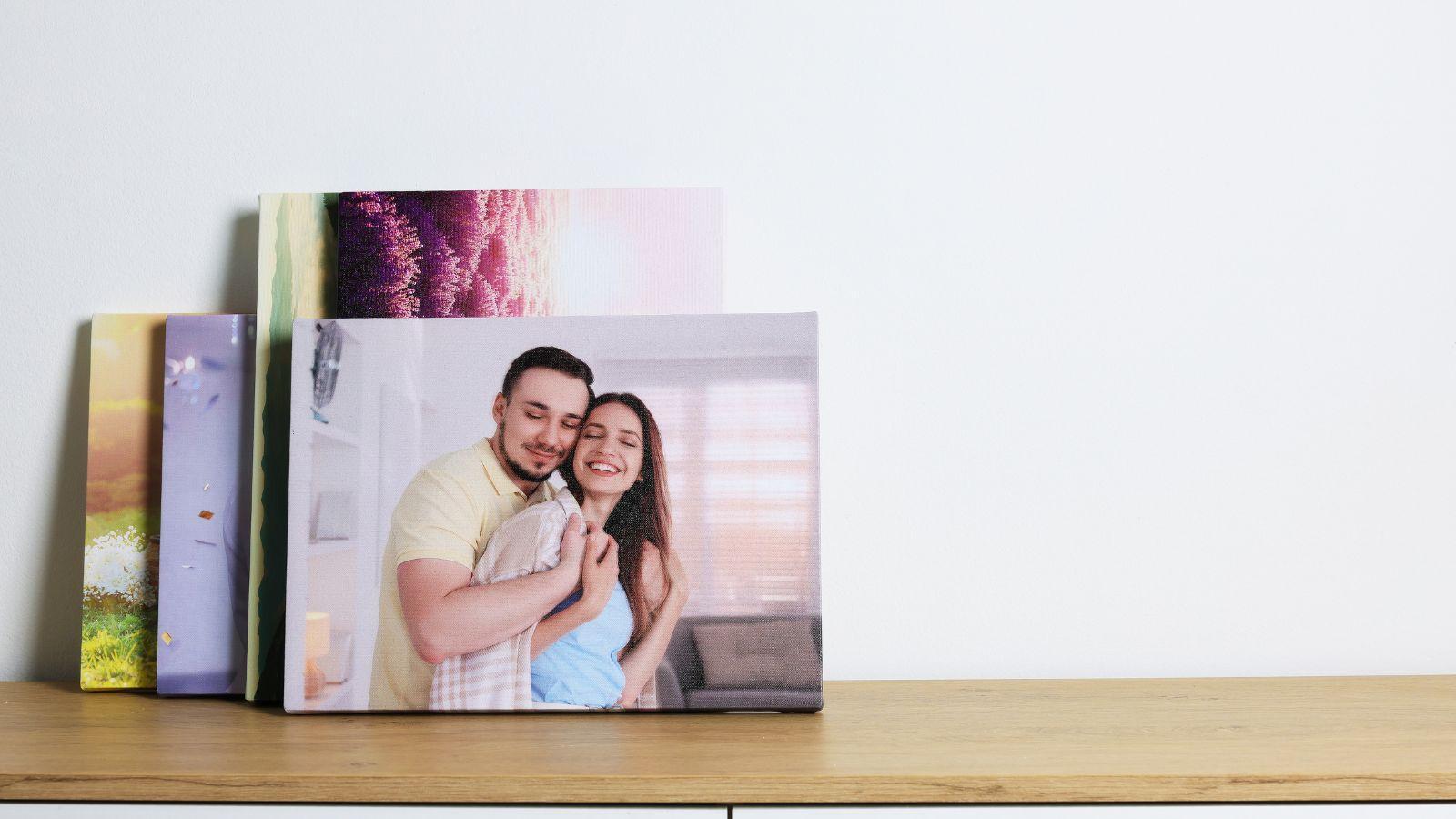
For weddings or performances, emphasize a single high-quality image and minimal text.
Informational Event Poster
For conferences or workshops, prioritize typography and structured blocks.
Creative Personal Print
For art or decorative posters, duplicate layout templates and vary color palettes.
Community Notice
For local boards, use bold contrast and simplified layouts for distance readability.
Before You Start Checklist
- ☐ Event details finalized
- ☐ Audience defined
- ☐ Poster size selected
- ☐ Images ready at print resolution
- ☐ Budget confirmed
- ☐ Timeline aligned with print delivery
Pre-Export / Pre-Order Checklist
- ☐ All text proofread
- ☐ Headline readable at distance
- ☐ No critical text near edges
- ☐ Colors checked for contrast
- ☐ PDF exported in print format
- ☐ Final proof reviewed
Common Issues and Fixes
Blurry Images
Replace low-resolution files with high-quality originals.
Unreadable Text
Increase contrast and simplify fonts.
Color Differences in Print
Adjust brightness slightly upward before export.
Crowded Layout
Remove secondary information or reduce decorative elements.
Trimmed Edges
Increase margin spacing or confirm bleed settings.
How To Use Print-on-Demand Posters: FAQs
Is a template necessary for beginners?
Templates provide balanced spacing and reduce formatting errors.
What file format works best for printing?
PDF (Print) preserves layout and resolution more reliably than image formats.
How many posters should be ordered?
Order based on distribution strategy and backup needs.
Can digital sharing replace print?
Digital versions can supplement print, but physical posters remain effective in local contexts.